
Digital Menu Board Installation Guide for Restaurants: The Complete Engineering & Deployment Manual
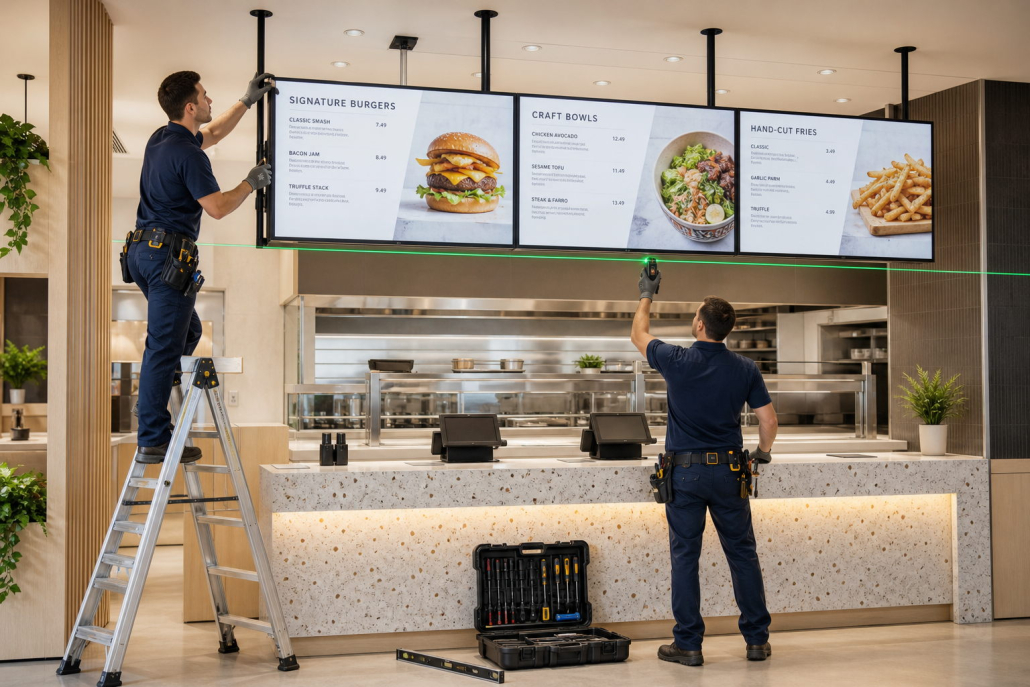
Upgrading your restaurant, cafe, or quick-service chain (QSR) from static printed menu boards to commercial digital displays is one of the most profitable investments you can make. However, the physical deployment of your digital signage is where projects succeed or stumble.
Improperly installed screens can lead to catastrophic safety liabilities (e.g., loose ceiling anchors), severe customer eye strain from bad viewing angles, glaring reflections from kitchen downlights, and unsightly rat’s nests of tangled power cables. Conversely, a professional, code-compliant installation ensures flawless structural safety, clean aesthetics, maximum equipment lifespan, and an effortless ordering experience for your customers.
Whether you are deploying Kontech 4K commercial-grade displays (700 nits) above an indoor ordering counter, integrating an ultra-wide 21:9 desktop screen at the cashier, or bolting an all-weather IP65 drive-thru kiosk to a concrete foundation, this comprehensive engineering guide provides step-by-step instructions for commercial success.
1. Pre-Installation Site Survey & Infrastructure Assessment
Before drilling a single hole or unboxing your commercial displays, perform a thorough physical site audit:
Pre-Installation Site Audit Checklist:
┌────────────────────────────────────────────────────────────────────────┐
│ 1. STRUCTURAL AUDIT  │ Verify ceiling joists, steel I-beams, or studs  │
│ 2. ELECTRICAL AUDIT  │ Dedicated 15A/20A circuits, recessed duplexes   │
│ 3. NETWORK AUDIT     │ Hardwired Cat6 Ethernet drops or robust Wi-Fi   │
│ 4. LIGHTING AUDIT    │ Map spot/downlight positions to avoid reflections│
└────────────────────────────────────────────────────────────────────────┘
A. Structural Load-Bearing Verification
- Commercial multi-screen menu boards (typically 3 to 5 displays ranging from 43″ to 55″) together with heavy-duty steel mounting rails weigh between 80 lbs to over 250 lbs (35 kg to 115 kg).
- Drywall alone cannot support commercial displays. Mounts must be anchored directly into solid wood studs, structural steel unistrut channels, or concrete ceiling slabs using rated commercial fasteners (such as 3/8″ Grade 5 lag bolts or wedge anchors).
B. Electrical Infrastructure & Power Drops
- Install recessed commercial AC power outlets directly behind the intended screen positions (or within ceiling junction boxes above hanging rails).
- Ensure power circuits have adequate capacity. A 3-screen 55-inch array typically draws 250W to 400W total under peak luminance. Running screens on shared circuits with heavy kitchen refrigeration compressors or commercial blenders can cause voltage spikes and premature power supply failure. Always install commercial surge protection.
C. Network Cabling (Cat6 vs. Wi-Fi)
- While Kontech commercial displays support dual-band 2.4G/5G Wi-Fi, hardwired Cat6 RJ45 Gigabit Ethernet is strongly recommended for primary menu arrays. Commercial kitchens feature dense stainless steel walls, walk-in coolers, and microwave ovens that create heavy RF interference. A hardwired network drop behind the central display guarantees 99.99% uptime for cloud CMS synchronization.
2. Ergonomic Mounting Height & Optimal Viewing Angles
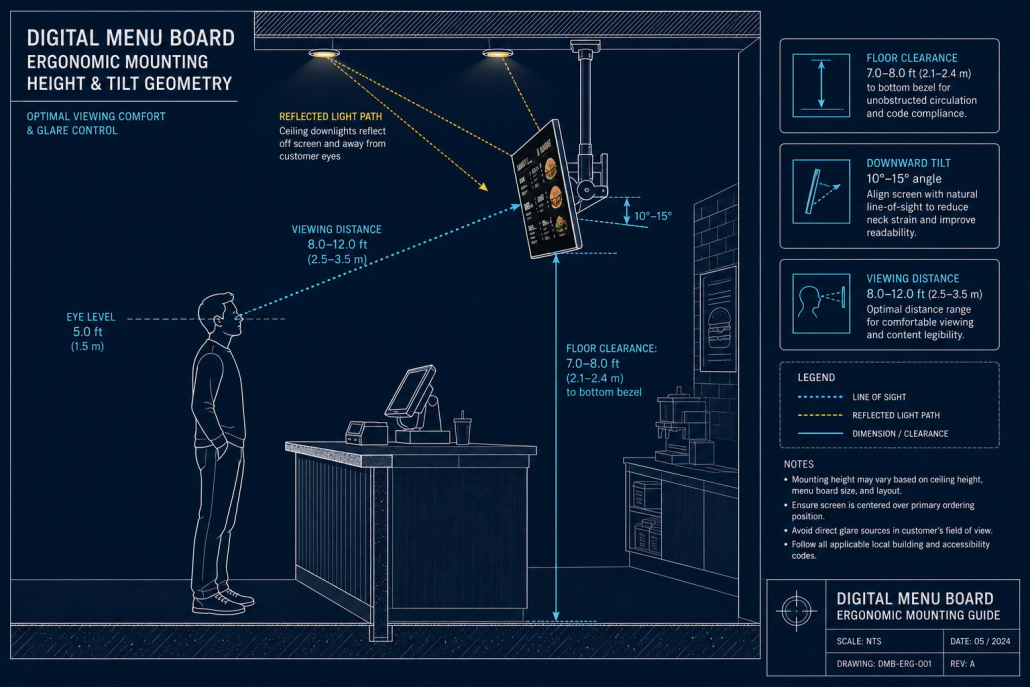
Mounting displays at the correct height and downward tilt angle is critical to prevent neck strain and eliminate reflections:
Optimal Viewing Geometry (Indoor Countertop):
        CEILING JOIST / UNISTRUT
                 │
           [Telescopic Pole]
                 │
              ┌──┴──┐
              │ █ █ │ ◄── Commercial Menu Display Array
              └──┬──┘
                 \  10°–15° Downward Tilt Angle
                  \
                   \  Line of Sight (6–12 ft Viewing Distance)
                    \
  7.0 – 8.0 ft       \
 (2.1 – 2.4 m)        ▼
  Floor Clearance  [Customer Eyes] (Eye Level ~5.0–5.5 ft)
                      │
══════════════════════╧═════════════════════ FINISHED FLOOR LEVEL
The Golden Rules of Viewing Ergonomics:
- The 7-Foot Floor Clearance Rule: The bottom edge of overhead ceiling-suspended displays must hang between 7.0 feet and 8.0 feet (2.1 to 2.4 meters) above the finished floor level. Hanging displays lower than 7 feet creates a physical hazard for taller patrons and counter staff, while mounting them above 8.5 feet forces customers into uncomfortable neck hyperextension.
- The 10° to 15° Downward Tilt Rule: Overhead menu displays should always be tilted downward at an angle of 10° to 15°. This downward tilt aligns the screen perpendicular to the customer’s natural line of sight (approx. 15° upward gaze when standing 8 to 12 feet away) and deflects harsh vertical downlights away from the viewer’s eyes.
- Screen Size to Distance Ratio:
- Viewing distance 5 to 8 ft (1.5–2.5 m) ➔ 43-inch screens
- Viewing distance 8 to 12 ft (2.5–3.5 m) ➔ 49-inch to 55-inch screens
- Viewing distance 12 to 20 ft (3.5–6.0 m) ➔ 65-inch screens
3. Step-by-Step Installation Methods
Depending on your restaurant’s ceiling architecture and counter layout, select the appropriate mounting method:
Method 1: Installing a Ceiling-Suspended Multi-Screen Rail Array (The Industry Standard)
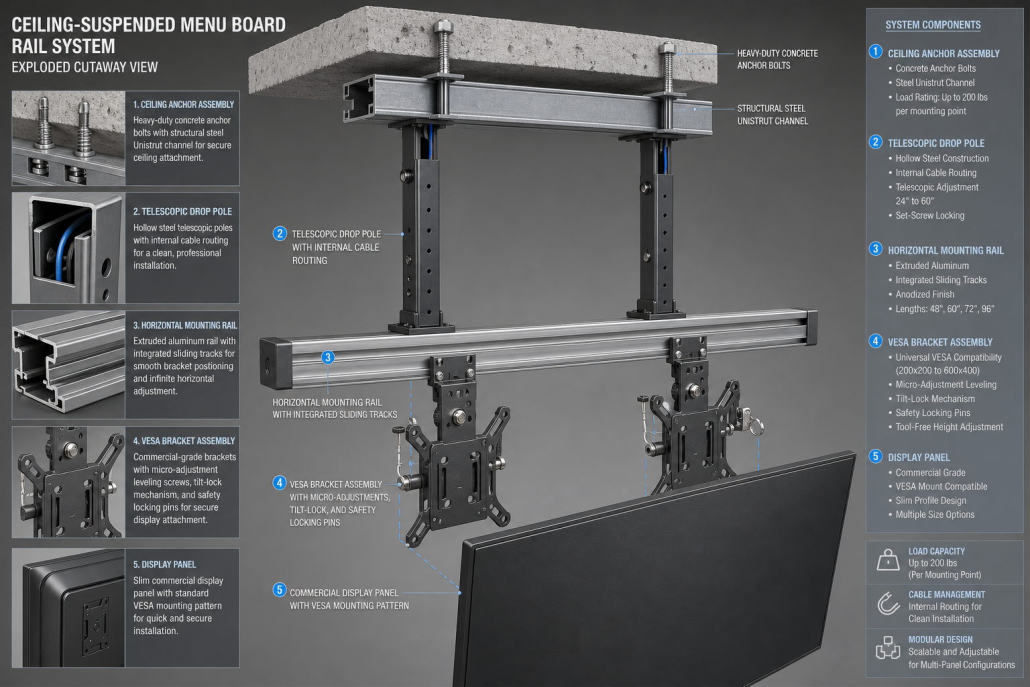
- Span the Ceiling Joists with Unistrut: If ceiling joists run parallel or do not line up with screen spacing, bridge joists with continuous 1-5/8″ slotted steel unistrut channels.
- Attach Ceiling Flange Plates: Bolt commercial ceiling mounting plates to the unistrut using spring nuts and 1/2″ grade-5 hex bolts.
- Mount Telescopic Drop Poles: Fasten heavy-duty steel drop poles into the ceiling plates. Adjust pole extension to achieve the target 7.5-foot floor clearance. Ensure all poles are laser-plumb.
- Install the Horizontal Menu Rail: Bolt the extruded aluminum mounting rail across the drop poles. Use a digital spirit level to guarantee perfect horizontal alignment.
- Attach VESA Interface Brackets to Displays: Secure VESA mounting brackets (typically VESA 400×400 mm for 43″–55″ displays) to the rear chassis of the Kontech commercial screens using factory-supplied M6/M8 machine screws.
- Hang Displays onto the Rail: Hook each display onto the horizontal rail. Utilize the bracket’s micro-adjustment screws to align screen edges and eliminate vertical seams between displays.
- Set Uniform Downward Tilt: Adjust the tilt tension mechanism on each bracket to match a uniform 12° downward angle across all screens.
Method 2: Installing Outdoor Drive-Thru Menu Boards
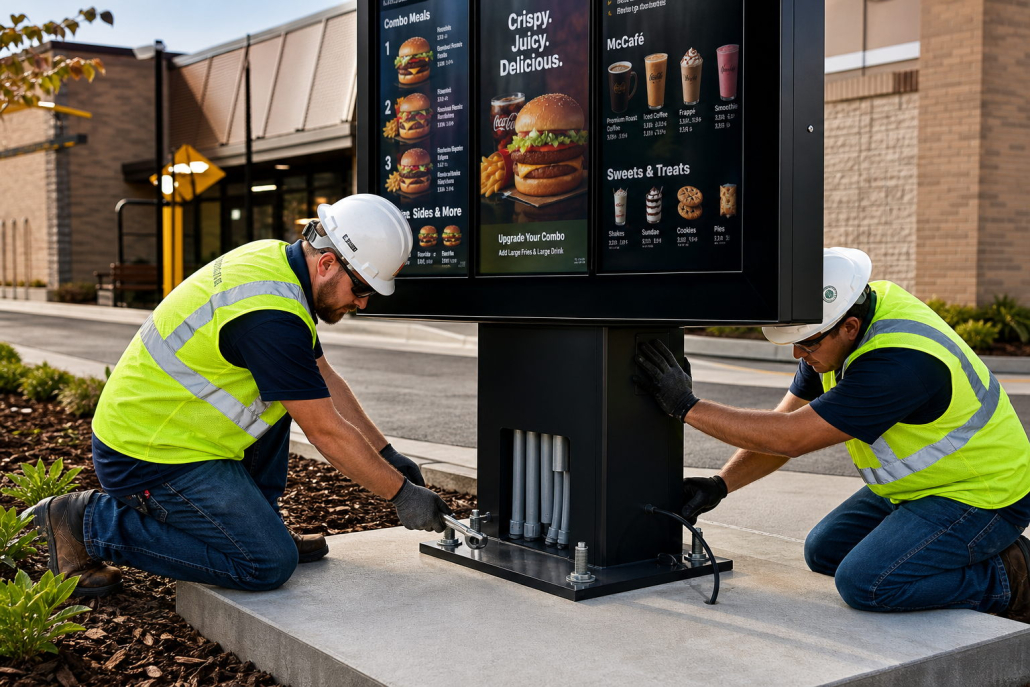
- Pour a Reinforced Concrete Pad: Prepare an outdoor concrete pad meeting local wind-load engineering codes (minimum 3,000 PSI concrete, rebar cage, minimum 6-inch to 12-inch depth).
- Install Conduit Stubs: Embed rigid PVC conduits into the concrete pour for high-voltage power (120V/240V) and low-voltage communications (Cat6 network / audio intercom cable).
- Anchor the Kiosk Base: Once cured, position the Kontech IP65 all-weather drive-thru enclosure over the conduit stubs and secure using stainless steel anchor wedge bolts (e.g., 1/2″ × 5-1/2″ 316 stainless anchors).
- Seal and Weatherproof: Apply industrial polyurethane sealant around the base perimeter to prevent moisture and pest ingress.
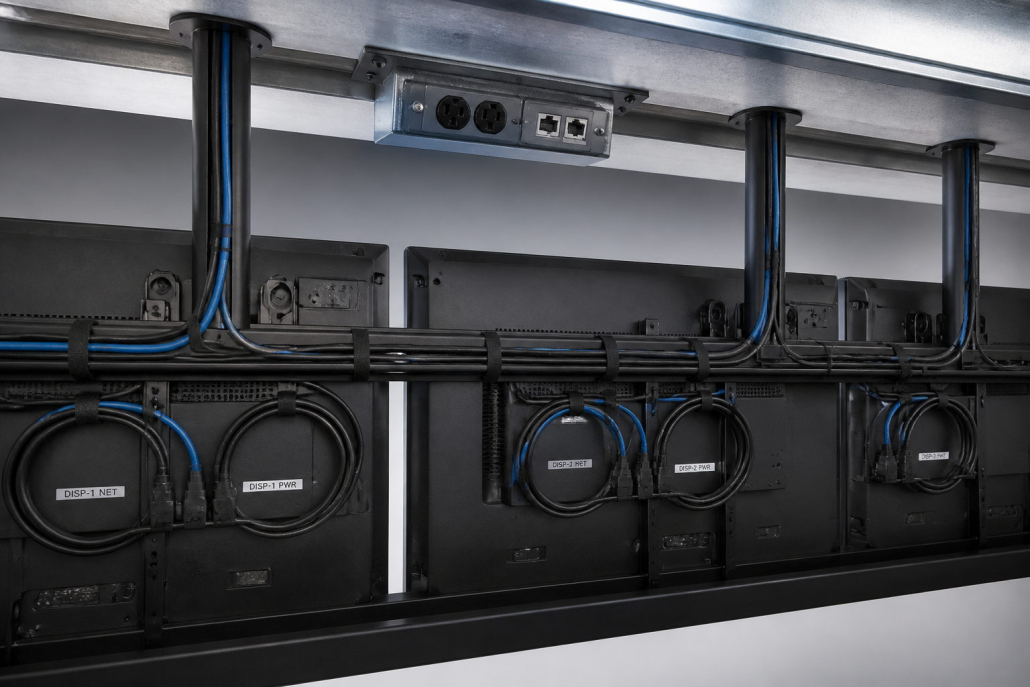
4. Cabling & Concealment: The “Zero-Cable” Aesthetic
Visible dangling wires destroy the premium visual aesthetic of a modern restaurant and pose safety and cleaning hazards:
The Professional Cable Management Protocol:
- Internal Pole Routing: Route power cords and Cat6 Ethernet cables through the hollow interior of the ceiling telescopic drop poles.
- Horizontal Rear Raceways: Run cables horizontally behind the displays within the channel of the mounting rail. Secure cables using UV-rated hook-and-loop velcro ties every 12 inches (avoid zip-ties that can pinch delicate Cat6 wiring).
- Service Loops: Leave an 8-to-12-inch “service loop” of slack behind each display. This allows individual screens to be pulled forward on articulating arms for maintenance without disconnecting cabling.
- Labeling: Clearly label both ends of every cable (e.g.,
DISP-1-PWR,DISP-1-NET,DISP-2-NET) with heat-shrink or vinyl wire labels.
5. Commissioning, Calibration, and Testing Checklist
Before opening the doors to customers, perform this final commissioning protocol:
Commissioning & Sign-Off Protocol:
[ ] 1. PHYSICAL ALIGNMENT: Check laser level across top bezels; verify seam gap <1mm.
[ ] 2. TORQUE CHECK: Verify all VESA screws, rail clamps, and tilt bolts are tightened.
[ ] 3. BRIGHTNESS CALIBRATION: Synchronize brightness (700 nits) across all panels.
[ ] 4. COLOR MATCHING: Set identical color temperatures (e.g., 6500K sRGB) across all screens.
[ ] 5. CMS FAILOVER TEST: Unplug Ethernet cable to verify offline local fallback playback.
[ ] 6. POWER CYCLE TEST: Cut main breaker and verify auto-power-on boot behavior.
